Estonian Data Portal (ATV)
Estonian Data Portal (ATV) allows user to sync data directly from SelectZero data catalog to ATV with few simple clicks.
Enabling ATV feature
To enable ATV feature, following environment variable needs to be passed to the container:
VARIABLE NAME | VARIABLE VALUE |
|---|---|
ATV_ENABLED | true |
Setting up connection to ATV
When ATV is enabled, new tab can be found under settings called "ATV"
Initially we need to set up credentials to connect with atv
Generating ATV Api key
Log in to ATV portal
Choose your organization
Copy your organization id from URL https://andmed-test.eesti.ee/organization/my-organization/XXXXXXX-XXXX-XXXX-XXXX-XXXXXXX
Press "API settings"
Press "Create new key"

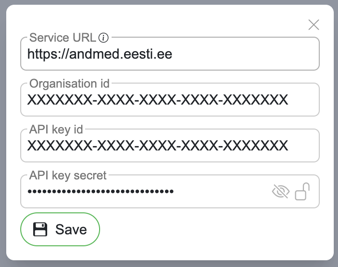
Write down the API key and API key ID from the opened prompt (these will be needed later for the integration)
Adding ATV connection to SelectZero
Preloading ATV custom fields
Press "Sync custom fields"

Confirm the prompt
ATV custom fields will be loaded with options
NB! In case the connection is poorly set up, this process will fail
Creating an ATV mirroring
Dataset (with data elements)
For setting up a dataset to be synced, you need to do the following steps:
In "Catalog → Objects" create a new dataset
Fill in the ATV custom fields which have been generated by sync
Assign Data objects to the dataset
Pick out fields that need to be sent to ATV
You can add ATV publish flag to the columns directly from object view
You can also add ATV publish flag to columns from "Attributes" tab with mass action
After data is prepared, admin can create an ATV "Dataset" mirroring from "Settings → ATV"
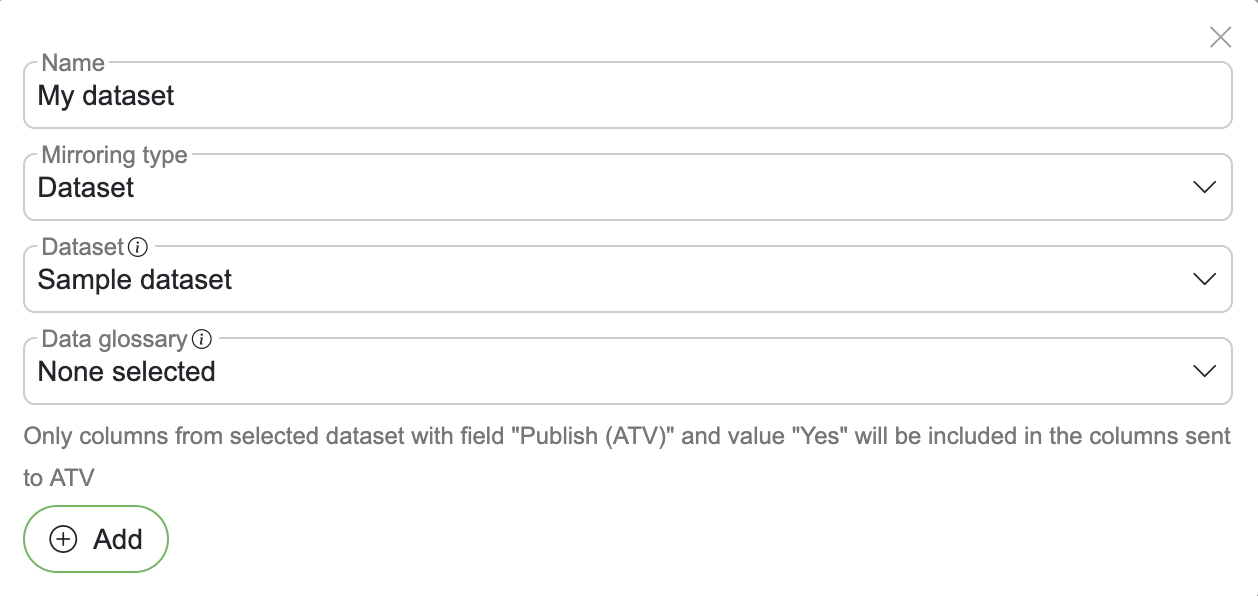
Name - Alias for given mirroring (Only for inner usage)
Mirroring type - Dataset
Dataset - Created dataset from step 1
Data glossary - (Optional) data glossary which will be connected with the dataset
Data glossary
For setting up a data glossary to be synced, you need to do the following steps:
In "Catalog → Glossary" create a new data glossary
Fill in the ATV custom fields which have been generated by sync
Assign Terms to the glossary
Connect data glossary terms to attributes
After glossary is ready, admin can create an ATV "Dataset" mirroring from "Settings → ATV"
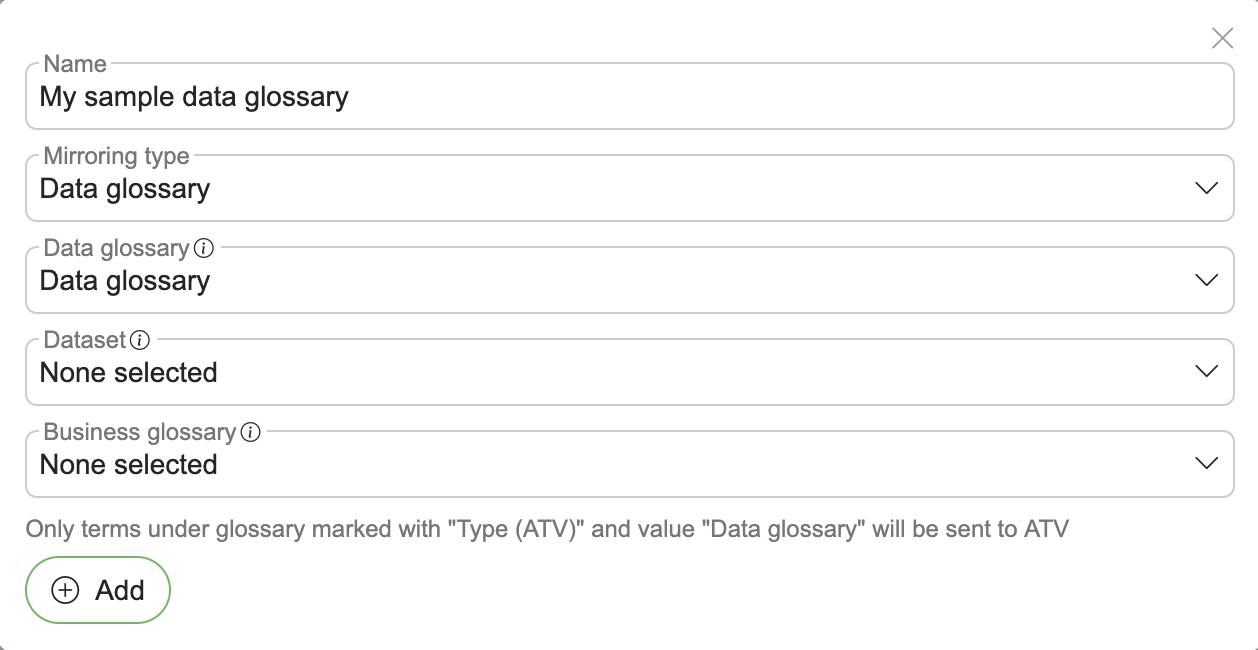
Name - Alias for given mirroring (Only for inner usage)
Mirroring type - Data glossary
Dataset - (Required) Existing dataset mirroring
Business glossary - (Optional) business glossary connected with the data glossary
Business glossary
For setting up a business glossary to be synced, you need to do the following steps:
In "Catalog → Glossary" create a new business glossary
Fill in the ATV custom fields which have been generated by sync
Assign Terms to the glossary
Create relations between terms if needed. ATV supports relations:
Synonym
Wider
Narrower
Groups
In group
After glossary is ready, admin can create an ATV "Dataset" mirroring from "Settings → ATV"
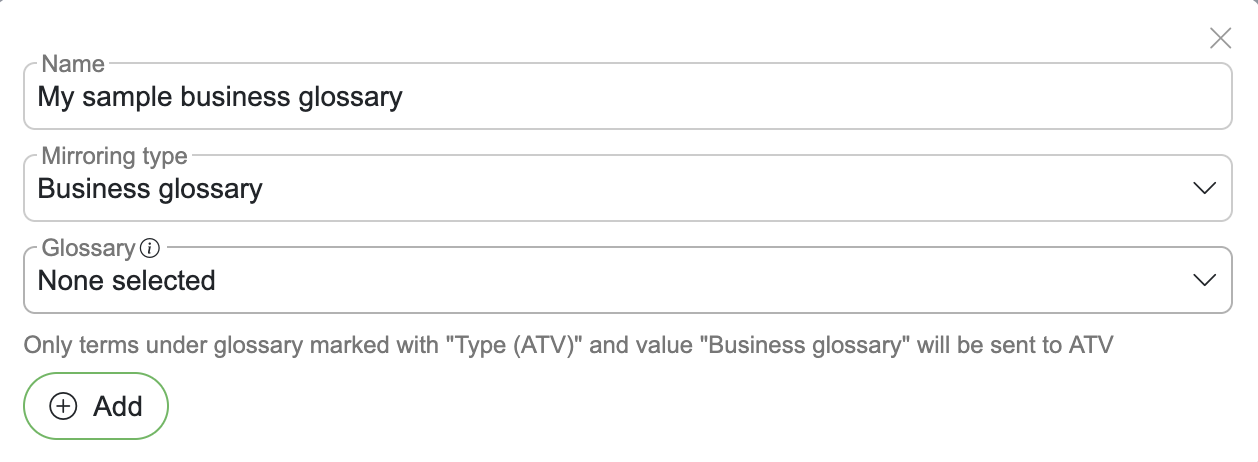
Name - Alias for given mirroring (Only for inner usage)
Mirroring type - Business glossary
Glossary - (Required) Glossary created in step 1
Syncing mirroring with ATV
Open mirroring object by clicking on the row
Press "Sync"
After sync fields will be available under ATV dataset
Navigating to ATV
Open mirroring object by clicking on the row
You can navigate to dataset by clicking on its id link

This will open ATV in a new window