Test suite reports
Test suite reports are stored and remain accessible for historical results. Reports generated for previous executions can still be opened and reviewed directly from the Reports tab of the test suite's detailed view.
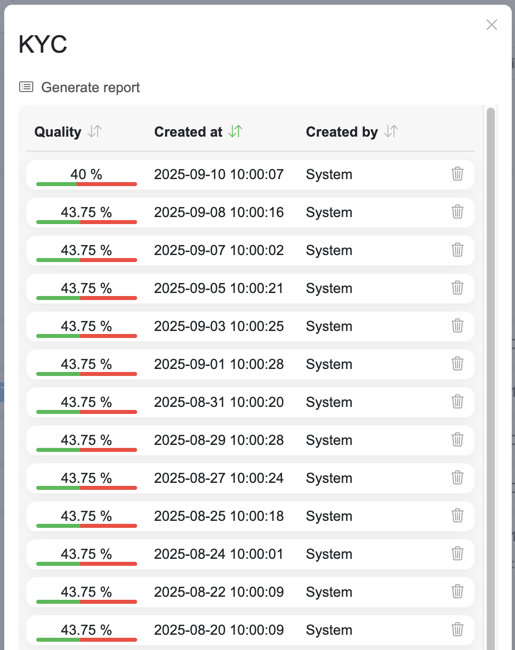
The history table lists each stored report's Quality, Created at, Created by and Type.
Generate report - opens a dropdown to create a report from the last execution results, as Excel or HTML
Clicking a row downloads that stored report
The delete icon removes a single report after a confirmation, and requires the Add/edit suite reports privilege
Report types
When generating a report, users can choose between two report formats:
HTML report - an interactive report viewable directly in the browser
Excel report - a downloadable Excel workbook for offline analysis and sharing
Excel report
The Excel report contains multiple sheets:
General results - the first sheet lists all test cases with their statuses, descriptions, and execution results
Individual test case results - each subsequent sheet contains detailed results for an individual test case (when available)
Partial reports
When a test suite contains test cases the user cannot see, reports cover only the visible ones:
Generate report first asks to confirm with Generate a partial report?, and the resulting report is not saved to the history
Stored reports cannot be downloaded, and each row shows a lock icon
The delete icon is not shown