General settings
System overview
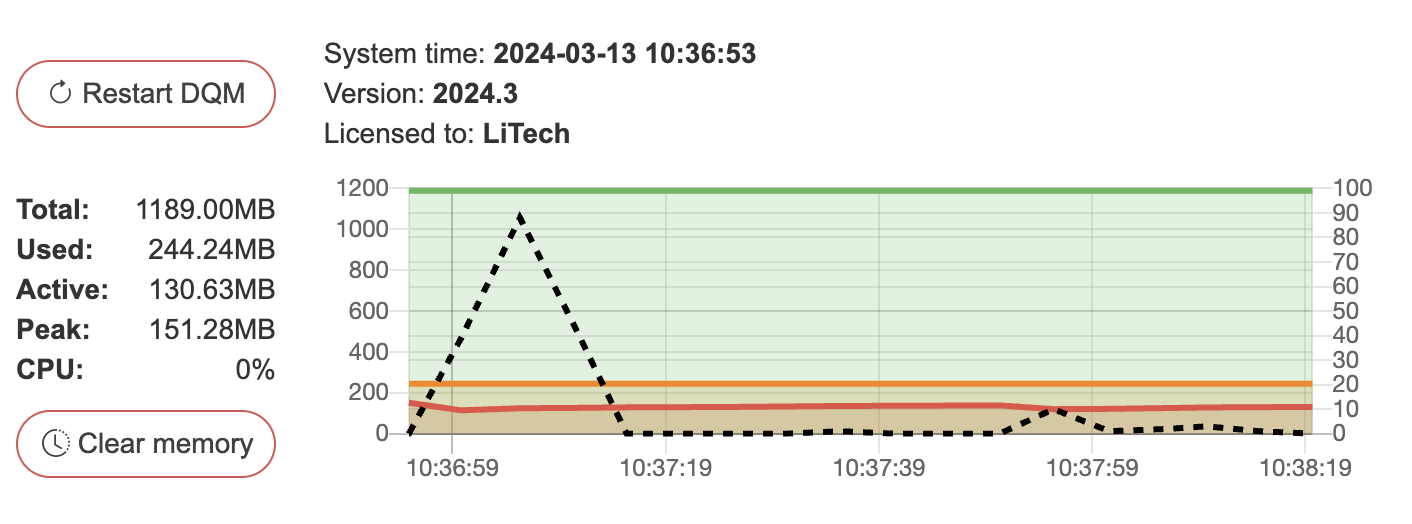
The card at the top of the General tab shows the System time, Version and current license, and offers:
Restart - manual soft restart for the platform (all users are logged out; a confirmation is shown)
Update license – update your on-premise SelectZero license via the pencil icon
The resource usage graph next to it plots (the stat pills above the chart are the legend):
Total (green) – total usable memory
Used (orange) – memory currently occupied
Active (red) – memory actively in use
Peak (grey) – peak memory, shown as a stat only
CPU (black, dashed) – CPU usage on the right-hand 0-100% axis
License
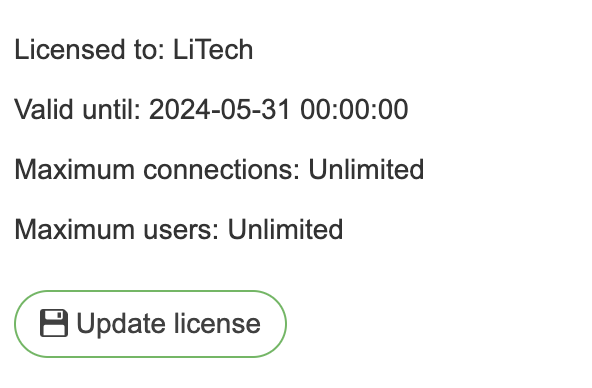
The License modal opens from the pencil icon next to the Licensed to row of the system overview card and displays the details of the currently installed license:
Licensed to – company name that owns the license
Valid until – license expiry date
Max connections – amount of connections allowed with current license
Max users – amount of users that can be created with current license
Max readers – amount of readers that can be created with current license
License key – editable text area used to install a new license key
Updating the license
To replace the current license with a new one:
Open Settings → General (requires ADMIN privileges).
In the card at the top, click the pencil next to Licensed to to open the license modal
Paste the new license key into the License key text area, replacing any existing content.
Click the Update button (floppy-disk icon) below the field to apply the new key.
If the key is valid, the Licensed to, Valid until, and limit fields above refresh immediately to reflect the new license. An invalid or expired key is rejected and the previous license remains in place.
Settings
The settings are grouped into collapsible sections, each with its own Save button. Unsaved changes are marked on the section header, and leaving the page with unsaved changes prompts first.
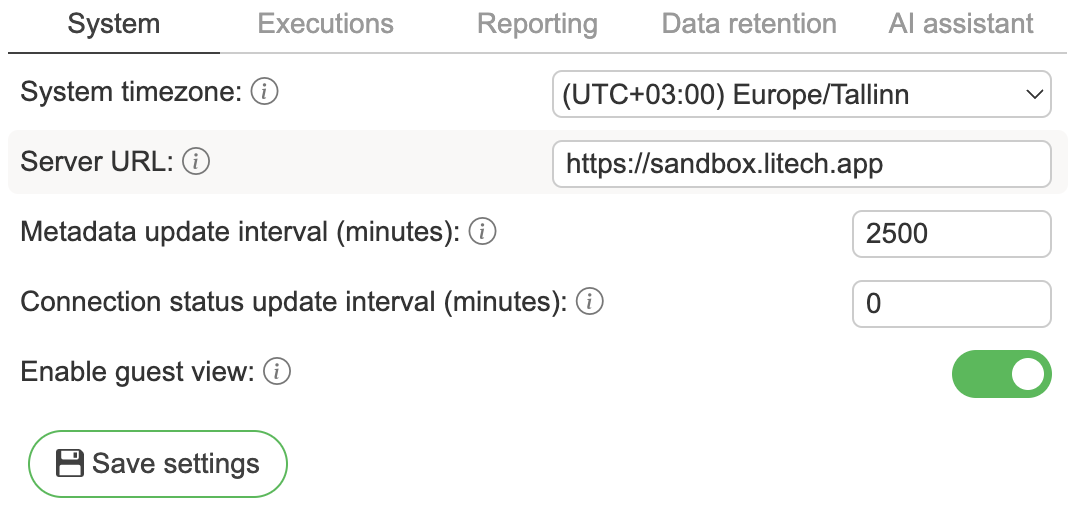
System timezone – timezone used by the application
Server URL – URL that is displayed in HTML reports and alerts
Session max inactive interval (minutes) – Max inactivity period after which user will be logged out
Session max length (minutes) – Max session length for active user after which user will be logged out
Connection status update interval (minutes) – interval of connection check for added connections
Logo – Whitelabel logo to be displayed in top left corner (png, jpg supported)
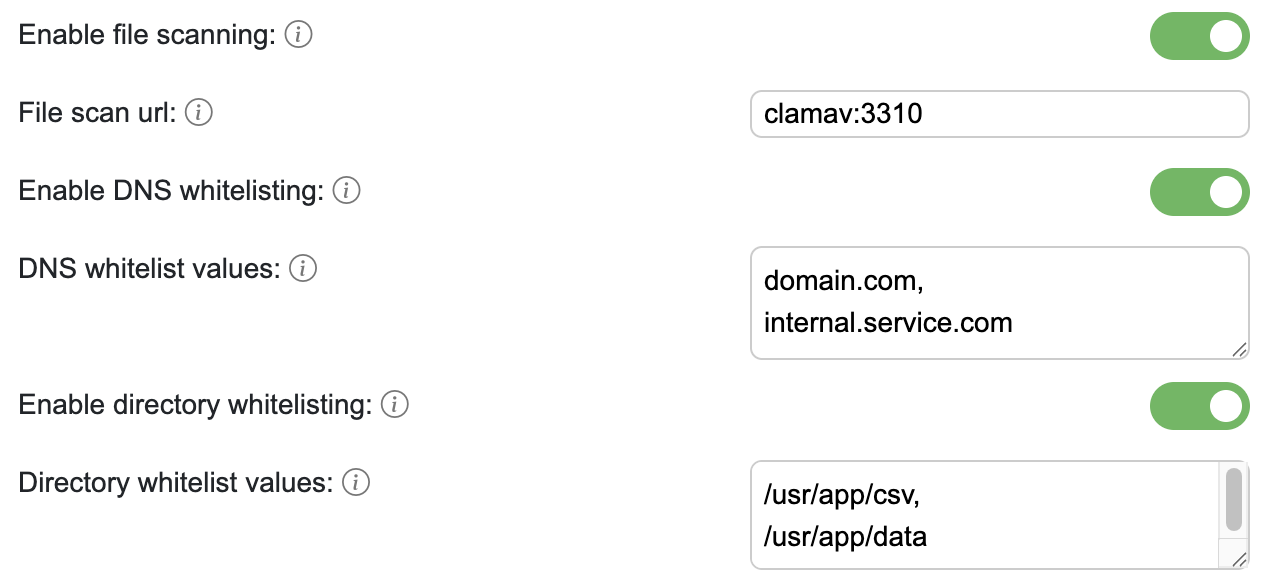
Enable file scanning – if this is enabled, then all uploaded files will be scanned with external clamAV client
File scan url - ClamAV service URL with port
Enable DNS whitelisting – if this is enabled, then all external connections will be validated against DNS whitelist
DNS whitelist values - Comma separated list of DNS values to whitelist. Can be full DNS or just root DNS
Enable directory whitelisting – if this is enabled, then all directory access will be validated against directory whitelist
Directory whitelist values - Comma separated list of directory values to whitelist. Must be absolute path
Enable temporary user access – Allows unauthenticated visitors to access DQM as temporary read-only users via a shareable link
Temporary user access role – Reader role assigned to temporary users (only reader roles are available). This determines what pages and data temporary users can view
Max temporary users – Maximum number of concurrent temporary users allowed. New temporary users will be rejected when this limit is reached
When enabled, a "Continue as a temporary user" button appears on the login page. The direct link
/login/anonymouscan also be shared - visitors will be automatically logged in as a temporary user after a brief confirmation screen.Temporary users are assigned a randomly generated username and the configured reader role. They can only view data and are automatically deleted when their session expires or on logout. See Temporary users for more details.
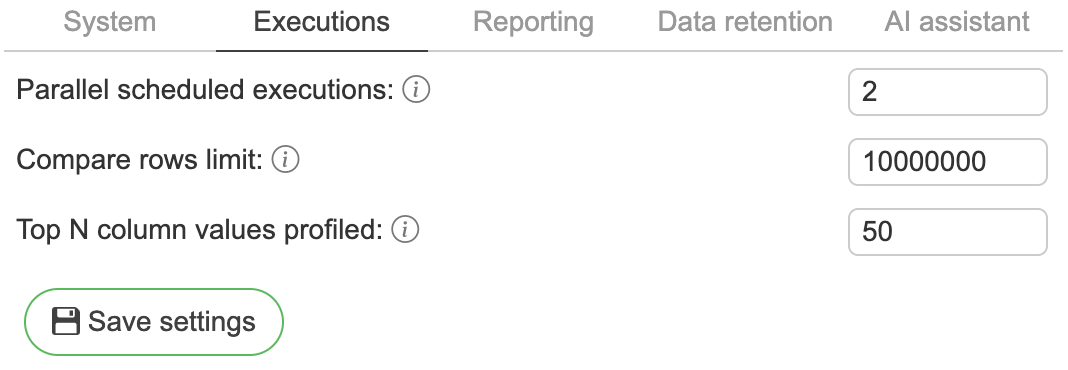
Parallel scheduled executions – Maximum number of scheduled executions in parallel (recommended 1)
Compare rows limit – maximum amount of database rows to be queried in compare test cases. This limit can be set to manage memory performance
Top N column values profiled – count of values that can be profiled for columns
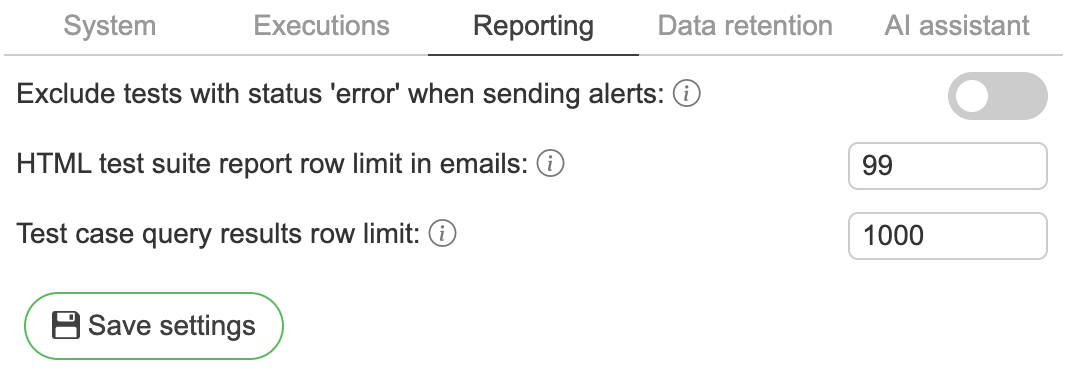
Exclude tests with status ‘error’ when sending alerts – Test cases with database error results are excluded when calculating test suite results to send alerts
Automatic relation – New test cases will have the automatic relation enabled by default
HTML attachment in emails – Full HTML reports will be included within the email
Report row limit in emails – Maximum number of detailed test rows shown in email content before the rest move to the attached report (recommended 100)
Test case query results row limit – number of test case failed results saved into CSV file (recommended 1000). A passing execution with at least this many rows stores no file at all
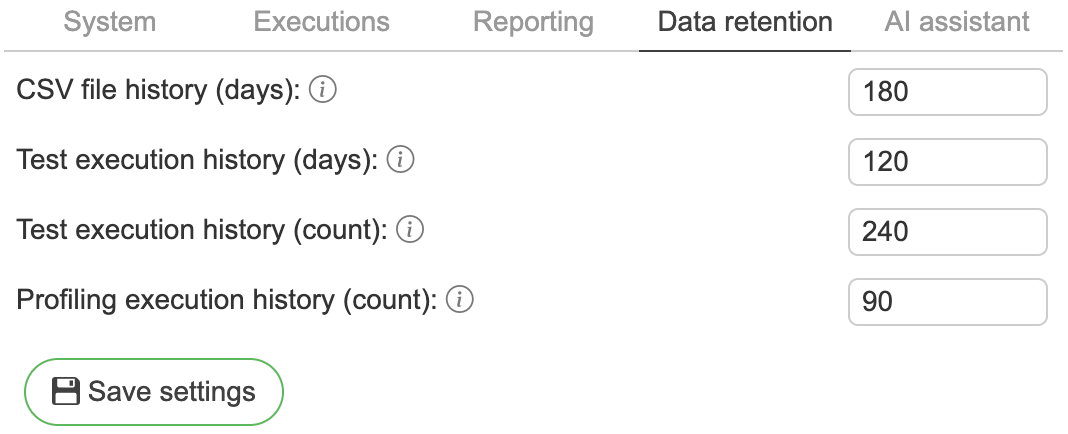
CSV file history (days) – Test case CSV result files kept in local file system (recommended 29)
Test execution history (days) – Test case execution history data retention in days (recommended 60)
Test execution history (count) – Test case execution history data retention in count of executions (recommended 120)
Profiling execution history (count) – Profiling execution history data retention in count of executions (recommended 60)
Test suite report file history (days) – Test suite report HTML files kept in local file system (recommended 29)
Alert event log history (days) – Alert event log entries kept (recommended 30)
Alert event log max rows – Maximum number of alert event log entries kept (recommended 100000)
Enable entity change history – Enable diff based change history (with version restore) for supported entities
Audit entity history (count) – Entity audit history version retention in count of versions (recommended 15); editable while entity change history is enabled
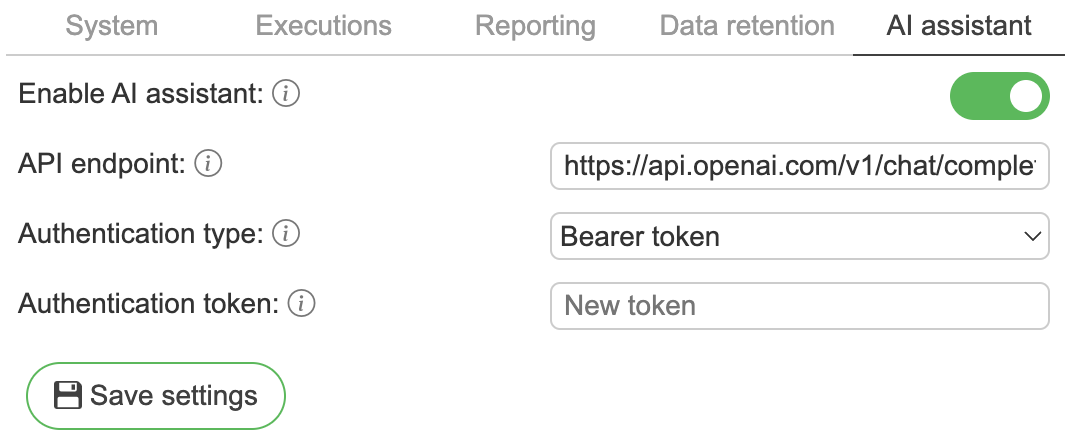
The assistant talks to an API you provide. See AI provider setup for creating those credentials on the provider side before filling these in.
Enable AI assistant – Whether AI assistant will be accessible.
API type - OpenAI, Ollama, or Azure OpenAI.
API endpoint – AI assistant API endpoint. Local models are supported as well if you have them made available via an API. Example endpoint configurations (can vary depending on how your IT department makes the services accessible):
OpenAI -
https://api.openai.com/v1Ollama -
https://your-ollama-host:11434Azure OpenAI -
https://xxx.cognitiveservices.azure.com
Service version – Azure OpenAI only. API version for the model deployment, for example
2025-01-01-preview. Leave empty to use the latest.Model name – Name of the model that is available through the API endpoint. On Azure OpenAI this is the deployment name, not the model ID. The model has to support structured outputs via json mode. For local models, it is not suggested to use models below 7B params, the more the better.
Authentication type – API authentication type, api key or none.
Authentication token – Api key value; shown when the authentication type is API key. The field always starts empty — leaving it blank keeps the stored key (changing the endpoint or API type requires entering it again).
Include profiling values - Include profiling values of columns in the prompts.
Include glossary terms - Include glossary terms in the prompts.
Include sample data values - Allow real sample data values (up to 20 distinct values per column) to be sent to the AI assistant during catalog description enrichment. Off by default: enabling it means actual row data leaves the deployment to the configured AI provider (which may be a third party such as OpenAI). This instance-level toggle overrides the per-user opt-in, so a security team can hard-disable sample-data egress regardless of individual Refresh sample data grants.
Maximum context window size (in tokens) – Requests exceeding this token budget won't be sent to the model (minimum 10000). Selected table context counts towards the limit.
Test connection - Tests the connection with a test prompt, using the values currently in the form (including unsaved edits). Available while the AI assistant is enabled.
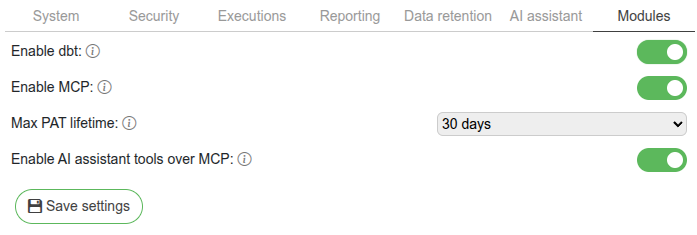
Module toggles enable optional integrations. Changes here require an application restart to take full effect.
Enable dbt – exposes the dbt integration tab and dbt-related features. See dbt setup.
Enable MCP – exposes the SelectZero MCP server and catalog tools.
Enable AI assistant tools over MCP – exposes AI assistant test-case suggestions through MCP. Requires the AI assistant to be configured. Editable only while Enable MCP is on.
Max PAT lifetime – caps the choices available in the personal access token creation dialog (1, 7, 14, or 30 days). Admins are not capped when issuing their own PATs and can select longer lifetimes up to 1 year or no expiry. Editable only while Enable MCP is on.